Pages

Showing posts with label IWB. Show all posts

Immersive Image Environments

If you enjoy working with images with your EFL students, especially on an IWB (interactive whiteboard) or a data projector, then PicLens is exactly what you need.

PicLens is a plugin (small program) that works within your web browser (there are versions for Firefox, Safari and IE 7) and it converts many of the standard image sharing websites, like flickr, Photobucket, Google Images, Yahoo Images etc. into "3D immersive environments"!

To understand what that mean have a look at this short flash video tutorial which shows how to use PicLens.
Click here or on the image to view the movie (5Mb Flash)
OR
Download a version of this movie for i-pod / i-tunes here

At the click of the mouse the normal 2D web pages are converted into a wall of images which you can explore and enlarge.

How to use this with ELT students on your data projector or IWB
  • Pull up a wall of images and describe one while your students try to guess which one it is. Then get a student to describe an image and the others guess which one. (This will work best with quite similar images). You can then get students to do this in pairs.
  • Type in a search term and ask students to describe the connection / relevance of the image to the term (This works best when you enter abstract nouns like politics, alienation, paranoia etc.)
  • Use the resource for any new vocabulary words that come up in your lesson. Simply collect the words, type them in and find images that relate to the word. (This won't work for every word)
  • Get students to compare and contrast two images (A common task in EFL exams such as FCE)
  • Play just a minute and select an image for each student, they then have to talk for one minute about that image with repeating them selves or pausing (This is difficult to do, so don't expect too much) award points for the student who manages to speak for the longest.
  • Put students with their back to the images, select one and the other students (in two teams or groups) have to describe the image to the student who can't see it. The student then has to guess which image they described.
  • Pull up a single image and ask students to think about the photographer's intention.
    • Why did the photographer take the image?
    • What did they want to say?
    • What is their relationship to the image content?
    • What were they doing before, after they took the image?
    • Etc etc.
  • Students can select their favourite image and explain why they like it, or the one they like least.
  • Students can try to use their imagination to describe the space around the image that you don't see.
    • What's happening around the photographer that you don't see?
    • What is the photographer wearing?
    • What's happening behind the photographer?
    • Describe the photographer (age, gender, nationality, personality etc.)
What I like about it
  • The Plugin is free and very simple to download and install and less than 2 Mb
  • The interface is really easy to use and very attractive
  • It really highlights the images and frees then from the textual distraction that you often find on a web page
  • There's no advertising on it
  • You get access to some really fantastic images in class without having to download them or violate anyone's copyright
  • The most recent version also enables you to create immersive walls of videos from YouTube !!! Fantastic!

What I'm not so sure about
  • As with any image sharing / search bank you have to be careful with younger students that inappropriate images don't appear. You can get around this though by setting up your own account on something like Flickr and only using specific images from your account. This could be time consuming, but if you got other teachers and students to help, it could be a fantastic resource.
  • If you are on a slow connection it could take a bit longer for the images to load.

If you want to use PicLens then you can download it from here:

This is a really great tool for the connected ELT classroom and also great to use at home. I hope you are able to enjoy using it with your students. Do drop me a lne with any other ideas and activities you use with it.

Best

Nik

Goolge Maps for Directions

Love them or hate them, you have to admit that Google does offer us all manner of useful free tools. One of my favourites is Google Maps, especially useful on my odd trips to London (when I never seem to be able to remember my A-Z!)

So, I've been thinking about how we could use this 'real world' tool to help our EFL students and to develop their abilities to give and understand directions. It's actually quite simple to use. You just go to http://maps.google.co.uk/ or http://maps.google.com/ Click on 'Get Directions' and then enter your start point and destination. Click the Google logo below for a quick video tutorial that shows some of the features.

Click for flash video tutorial (1.4 Mb)

So how can we use this with students?
  • Choose a location and destination and get Google Maps to create your directions, then print up a map of London with the two destinations on and ask your students to mark the route on the map.
  • A variation on this would be to have the map printed with the route on and cut up the directions and ask your students to put them in the correct order
  • Print up a route map and directions and edit out some of the key words, then get your students to write in the missing words.
  • Give your students a map showing only the start point and read out directions for them to follow. They have to listen and tell you what the destination is.
  • Print out close ups of each stage of the journey and use them as flash cards. Get your students to match each step of the journey to the correct flashcard.
  • Print out a route map and ask students to write their own directions for the map (You could give two groups different destinations then get them to exchange directions to see if the other group can use their directions to find the correct destination.)
  • To download an example set of directions + route map and blank map to print up and use for these activities click here: Example materials >> (500k pdf)
  • To print up maps and directions for yourself just click on the Google maps 'Print' icon.

What I like about it
  • Google maps is free and really simple to use
  • If you have an i-pod touch or an i-phone, there is a fantastic Google Maps widget which you can install (great for mobile learning)
  • Gives good clear instructions and easy to print maps (just use the 'Print' icon)
  • A really useful 'real world' tool
  • You can use it live if you have a computer room or data projector / interactive whiteboard in class, or just print up materials for use off line.

What I'm not so sure about
  • The detail of the maps for some developing countries is pretty sparse
Hope you find this tool useful and if you have suggestions for other activities I'd love o hear them.

Best

Nik

Prompting reading speeds

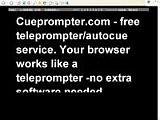
This is a really handy little tool which is doing the rounds at the moment. It's called CuePrompter and it's an online Teleprompter.

For those not in the know, a Teleprompter is a tool used by news readers, TV presenters etc to help them remember their lines. They read it from above the camera.

This one is very simple to use and you simply cut and paste your text into the field, choose screen size, text size and colours and click a button and you are off.


Once you have your text up on the screen you can then choose the speed that the text moves at and also do a few interesting things like having the text reverse or having the text as a mirror image!
How to use this with students
This could be really useful to push your students reading speed and gist reading. Many students find it very difficult not to focus on every word of a text and get stuck when words come up that they don't know. With a tool like this, you can literally force them to scan the text and keep moving.

To get the best from this in class you are going to need a data project or an interactive whiteboard (IWB).

Some possible tasks:
  • Paste in a news text and actually get your students to read it as it scrolls. You could repeat and gradually increase the speed.
  • Put students in pairs / groups to read out load the parts of plays or dialogues. With short dialogues you could get them to read through a few times and then play the mirror image and see if they can still remember and follow the dialogue.
  • Play the text through in it's mirrored inversion first and see how much Sts understand (make it a short text though and don't expect too much)
  • With short texts you could try to get students to read the text the write down what they have read. You'll need to re-show the text a number of times if you want them to get every word, or they could just summarise after a couple of times through.
  • Try playing your text through at high speed the first time and get students to try to guess what it's about and then gradually slow down the speed each time so they develop a better understanding.
  • To get students doing some TPR ( Total Physical Response), write a list of instructions and get the students to do them in the order they appear on the prompter. It might also be fun to gradually increase the speed of the text and see if the students can keep up!

If you decide to get students to read out loud from the text then I think it's handy to use texts that were designed to be read aloud such as plays, poems or the text from a news report. You could even get students to produce their own texts or texts for each other.

What I liked about this
  • It's free
  • It's really simple to use
  • You can create materials in seconds
  • It doesn't involve downloading anything or using loads of bandwidth
  • It gives the teacher control of the text
What I wasn't so sure about
  • It doesn't work so well in the Firefox browser, though it's fine in IE
  • It would be useful to be able to save and embed the texts into other pages
  • It gives the teacher control of the text
Hope you find this useful and if you have any other suggestions for tips or activities by all means add a comment below.

Best

Nik